# Windows 10X
You are now entering State Separation Zone
# Microsoft Emulator (XdeManager)
#### Links to the app
- [aka.ms/emulator/app](https://aka.ms/emulator/app)
- [aka.ms/xde/store](https://aka.ms/xde/store)
- [Store page](https://www.microsoft.com/en-us/p/microsoft-emulator/9N0TN65P5BF6)
#### Enabling Internal Mode
- Create `HKEY_LOCAL_MACHINE\SOFTWARE\Policies\Microsoft\SQMClient`
- Set key `MSFTInternal` to 1 (DWORD) [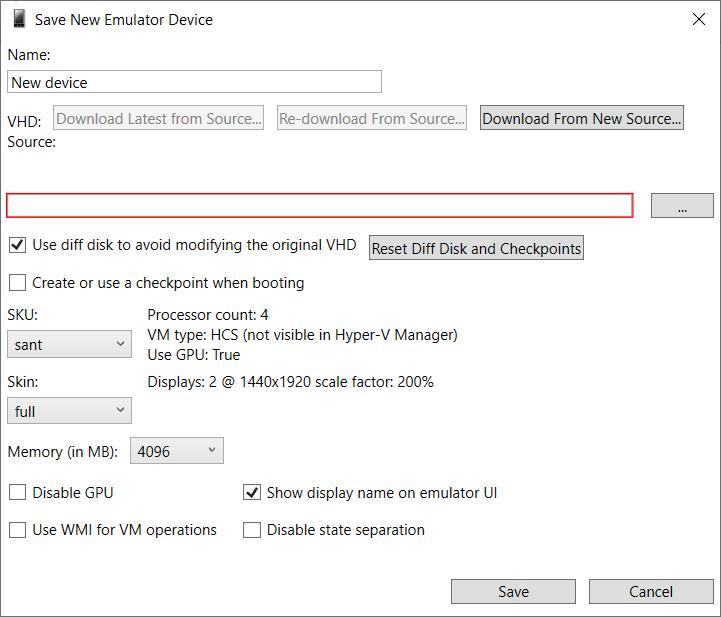](https://osg.wiki/uploads/images/gallery/2020-02/9oySmGmFkjM6rxvx-photo_2020-02-11_22-52-39.jpg)
# Installing Windows 10X 195xx (emulator image) on real hardware
Here's some quick notes on installing Windows 10X on real hardware. For this example, we're assuming a system with *no* other critical disks installed, and a helpful host system being around to set up the initial image.
## Prerequisites
### Host
- Windows 10 Manganese build (195xx).
- Utility USB flash drive of ~32GB+.
### Target
- CPU with Hyper-V support for VAIL.
- Graphics card with DCHU drivers available.
- UEFI system firmware with the ability to **disable Secure Boot**.
- Boot drive larger than 128 GiB. An 128 GB SSD usually isn't.
- Preferred: 4Kn boot drive. We'll provide steps a bit later for converting the image.
## Host work
### Fetch and mount the emulator image
Make sure you have a *clean* `Flash.vhdx` from the [W10X emulator](https://aka.ms/xde/latest). Copy it someplace, and preferably keep another backup as well.
Mount it using PowerShell (as administrator):
```powershell
Mount-VHD "X:\WCOS\Flash.vhdx"
```
Check if the emulator image is mounted correctly:
```powershell
Get-StoragePool -FriendlyName OSPool
```
This should look like the following:
```
FriendlyName OperationalStatus HealthStatus IsPrimordial IsReadOnly Size AllocatedSize
------------ ----------------- ------------ ------------ ---------- ---- -------------
OSPool OK Healthy False False 127.9 GB 21.81 GB
```
### Gather UpdateApp and verify it works
Start `diskpart` so you can mount MainOS:
```
list volume
# select the volume called MainOS
select volume 42
# assuming M: is free
assign letter=m
exit
```
From the MainOS partition, go and hunt down the following files and drop them in a standalone folder (for example, `X:\WCOS\Tools`):
**\\Windows\\Servicing**
- UpdateApp.exe
- CbsApi.dll
- CbsMsg.dll
**\\Windows\\System32**
- CbsCore.dll
- DrvServicing.dll
- IUSpaces.dll
- IUSpaces\_vb.dll (copy and rename IUSpaces.dll)
- UpdateAPI.dll
- cimfs.dll
- cmiadapter.dll
- cmiaisupport.dll
- cmintegrator.dll
- dpx.dll
- drvstore.dll
- msdelta.dll
- mspatcha.dll
- mspatchc.dll
- turbostack.dll
- wcp.dll
- wdscore.dll
Run `cmd.exe` as administrator, go to the tool directory, and try getting the installed packages on the image:
```
cd /d X:\WCOS\Tools
updateapp getinstalledpackages
```
The result should look a lot like the following:
```
UpdateApp - Update Application for Windows Mobile
[00:00:00] Loaded servicing stack from X:\wcos\tools with session name IUPackageInfoSession_EFIESP
[00:00:00] External storage staging directory is: (null)
[00:00:00] Closing session IUPackageInfoSession_EFIESP
[00:00:00] Loaded servicing stack from X:\wcos\tools with session name IUPackageInfoSession_MainOS
[00:00:00] External storage staging directory is: (null)
[00:00:01] Closing session IUPackageInfoSession_MainOS
164 packages:
Microsoft-OneCore-HyperV-Guest-UpdateOS-Package~31bf3856ad364e35~amd64~en-US~10.0.19563.1000, UpdateOS
Microsoft-OneCore-HyperV-Guest-UpdateOS-Package~31bf3856ad364e35~amd6410.0.19563.1000, UpdateOS
Microsoft-OneCore-ServicingStack-UpdateOS-Package~31bf3856ad364e35~amd6410.0.19563.1000, updateos
Microsoft-OneCore-ServicingStack-UpdateOS-UX-Package~31bf3856ad364e35~amd6410.0.19563.1000, updateos
Microsoft-OneCoreUpdateOS-Product-Package~31bf3856ad364e35~amd64~en-US~10.0.19563.1000, updateos
Microsoft-OneCoreUpdateOS-Product-Package~31bf3856ad364e35~amd6410.0.19563.1000, updateos
Microsoft-Windows-OneCoreUpdateOS-ImageCustomization-Package~31bf3856ad364e35~amd6410.0.19563.1000, updateos
Microsoft-Composable-ModernPC-BootEnvironment-Core-CodeIntegrity-Sbcp-Package~31bf3856ad364e35~amd6410.0.19563.1000, EFIESP
Microsoft-OneCore-BcdBootoption-Package~31bf3856ad364e35~amd64~~10.0.19563.1000, EFIESP
[...]
getinstalledpackages completed successfully
command took 7 seconds
```
If it does, congratulations! You can move on to the next step.
### Inject graphics and network drivers
For this example we'll show the Intel HD Graphics driver, but you might need to add more INFs depending on your hardware. If you can't find the right INFs, why are you even doing this?
Place extracted Intel drivers in a directory, so that you have e.g. `X:\WCOS\DHCUDrivers\Graphics\iigd_dch.inf`. Open `iigd_dch.inf`, and note down the values for 'Provider' and 'DriverVer'. For me, those were:
```
Provider=%Intel%
DriverVer=08/23/2019,26.20.100.7158
```
The provider name is an indirected variable here, so we go and find what `%Intel%` meant as well. A bit below in the INF, we find the following:
```
Intel = "Intel Corporation"
```
Good! Now, invoke `updateapp` with the data we've just discovered to install the INF to the BSP partition in your WCOS image:
```
updateapp install "DriverPackage|X:\WCOS\DHCUDrivers\Graphics\iigd_dch.inf|Intel_Corporation-iigd_dch.inf~amd64~26.20.100.7158~bsp|0"
```
Note the recurrence of `Intel_Corporation` and `26.20.100.7518`. The installation process will complain with an error code of `c0880005` if you get the 'keyform' wrong.
The general rule for inf file names and provider names in the 'keyform' is the following:
- Any space in the inf name or the provider name must get replaced by an underscore '\_'
- Any dash in the inf name or the provider name must get replaced by an underscore '\_'
After you've installed your favorite driver packages, we can prepare the utility flash drive.
### Make a utility flash drive
Gather the following assets into a directory we'll label `X:\WCOS\UtilityDrive\Boot`:
- From an ISO of Windows 10 19559 AMD64 (or higher - see [UUPDump](https://uupdump.ml/) or similar for generating these):
- boot\\
- EFI\\
- sources\\boot.wim
- bootmgr.efi
- For later servicing, your WCOS\\Tools folder. **Use a hex editor to replace any mention of the Unicode string `X:\Windows` in UpdateAPI.dll and UpdateApp.exe with something like `X:\Wbndows`, or expect any servicing tasks to fail.**
- An x64 [EFI shell](https://github.com/tianocore/edk2/blob/UDK2018/ShellBinPkg/UefiShell/X64/Shell.efi?raw=true). **Rename EFI\\boot\\bootx64.efi to EFI\\boot\\winx64.efi, and name the shell as EFI\\boot\\bootx64.efi.** You'll **need** the shell in order to ***ever*** boot regular Windows again (including PE).
- A file called `startup.nsh` in the root:
```
dmpstore -d SecureBootPlatformID
fs0:\efi\boot\winx64.efi
fs1:\efi\boot\winx64.efi
fs2:\efi\boot\winx64.efi
fs3:\efi\boot\winx64.efi
fs4:\efi\boot\winx64.efi
fs5:\efi\boot\winx64.efi
fs6:\efi\boot\winx64.efi
fs7:\efi\boot\winx64.efi
fs8:\efi\boot\winx64.efi
fs9:\efi\boot\winx64.efi
fsA:\efi\boot\winx64.efi
```
If you are having troubles getting back to Windows PE/Windows Desktop, you may also try the following extra commands in startup.nsh: (**Warning**: these will kill every variables you have saved on your system)
```
dmpstore -d -guid BA57E015-65B3-4C3C-B274-659192F699E3
dmpstore -d -guid 77FA9ABD-0359-4D32-BD60-28F4E78F784B
dmpstore -d -guid EAEC226F-C9A3-477A-A826-DDC716CDC0E3
```
- gdisk64.exe from [GPT fdisk](http://www.rodsbooks.com/gdisk/download.html).
- [ddrelease64.exe](http://www.chrysocome.net/download).
#### Partitioning
1. Connect your UFD.
2. Open `diskpart`.
3. `list disk`, `select disk` the **right disk, or you'll lose all data on it and will have to do a long partition scan to have any hopes of retrieving your data**, and `clean` + `convert gpt`.
4. `create partition primary size=5000`, `format fs=fat32 quick`, `assign letter=y` to make a bootable FAT32 partition.
5. `create partition primary`, `format fs=exfat quick`, `assign letter=z` to make an exFAT partition to house the VHDX.
#### Putting things in place
Place your boot drive directory on the drive you called `Y:`. `Dismount-VHD "X:\WCOS\Flash.vhdx` in your PowerShell to unmount the VHDX, and copy the VHDX to `Z:`. You should now have a tree structure similar to:
```
Y:\
Boot\
EFI\
Sources\
Tools\
startup.nsh
Z:
Flash.vhdx
```
Eject and unplug the UFD.
## Target work
Use your throwaway laptop or other modern enough system with *larger-than-128GB* system drive. **Make sure Secure Boot is off.**
### Boot Windows PE
Boot it on the target. Really. Once you get into Setup, press `Shift-F10` to open a command prompt. Go back and open another, for good measure. Alt-Tab works for switching here.
### Copy the VHD (destructive!)
Find out where your USB flash drive is mounted. This will involve doing a lot of the following:
```
C:
dir
D:
dir
E:
dir
F:
dir
```
Here, we'll assume the *boot* volume is D: and the volume with Flash.vhdx is E:.
Open `diskpart`, and attach the VHD:
```
select vdisk file=E:\flash.vhdx
attach vdisk readonly
# wait a minute or so
list disk
# if MainOS etc. show up as online, good!
```
Note down the ID of a 2048 MB disk with a 2048 MB free space, and subtract 1 from it.
```
# note: there's no 16
Disk 17 Online 2048 MB 2048 MB
```
The ID to note down, therefore, is 16. Also, note down the ID of the target disk (3 in this case).
Wipe it. Yes. That's data loss for you. **Make sure you've got backups of anything important on there.**
```
select disk 3
clean
convert mbr
exit
```
(replacing `3`)
Copy the VHDX's content to your disk:
```
E:\Tools\ddrelease64 if=\\.\physicaldrive16 of=\\.\physicaldrive3 bs=8M --progress
```
(replacing `16` and `3`)
... and go have a hot beverage while waiting for this to hit 131072M.
### Rebuild the GPT (for 512-byte disks only)
You probably have a 512-byte disk, so you're going to have to rebuild the GPT. Yay!
Run commands along the following:
```
> E:\tools\gdisk64 -l \\.\physicaldrive16
[..]
Number Start (sector) End (sector) Size Code Name
1 512 8703 32.0 MiB EF00 BS_EFIESP
2 8704 33554426 128.0 GiB 4202 OSPool
```
Remember the numbers (start, end, code and name) for each partition. Multiply the numbers by 8 (since 4K/512 = 8) - so you get 4096, 69624, etc.
Now, we'll create a new GPT for the target disk:
```
E:\tools\gdisk64 \\.\physicaldrive3
# accept any warning
x
z
E:\tools\gdisk64 \.\physicaldrive3
accept the warning
n
1
4096
69631
EF00
n
2
69632
268435415
4202
c
1
BS_EFIESP
c
2
OSPool
p
check if it makes sense - matches the above but with different sector numbers
w
```
Exit all open windows, and your system should reboot.
### Boot Windows PE, again
Boot into Windows PE again - not the internal disk you just overwrote. Verify in `diskpart` if you can `list volume` and it'll show MainOS etc. without you having attached the VHD.
### Remove WCOS Security
In Windows PE, open `diskpart` and do `select volume`. Find the volume named `ÈFIESP` we will assume here its volume id is 6, yours may be different. Then we run `select volume 6` and `assign`. Do `list volume` again to find the drive letter of EFIESP, in our case it's `E:`, yours may be different.
Delete the following file: `del E:\efi\Microsoft\Boot\SecureBootPolicy.p7b`
You may additionally replace `winsipolicy.p7b` with the one from a desktop sku (the file is located in the same folder).
### Boot W10X
OK, now you can boot your internal disk. If you haven't followed the Remove WCOS Security instructions, this will set a Secure Boot policy value, however, so you'll have to boot your utility flash drive again if you want to boot any other Windows media (or otherwise execute the `dmpstore` command).
If everything's right, you should be booting into Windows 10X, and your graphics adapter might even be working.
# Dual booting legacy Windows 10 with Windows 10X
| Created: February 15, 2020 | Last Update: January 21, 2021 |
|---|
| Authors: | [Gustave Monce](https://twitter.com/gus33000) |
| Status: | **Draft** |
| Supported Windows 10X Version: | 195xx |
This guide will assume you have properly installed Windows 10X before using the instructions provided in this book with no step skipped.
**Note:** This guide has not been updated to support dual booting Windows 10X version 20279 with Windows 10 yet.
### Prerequisites
- An host computer
- The target computer running Windows 10X
- Your utility flash drive (UFD)
- An installation media of Windows 10 build 195xx (or higher)
- An usb driver with the installation files of said Windows 10 build
### Preparing the pool
Boot the target computer into your UFD, and make sure you're in the command prompt. Verify using diskpart that you see all space partitions on disk (MainOS, Data, OSData...) by using
```
diskpart
# this will list all volumes and show MainOS, Data...
list vol
# exiting diskpart
exit
```
Once verified, you can start preparing the pool to accomodate for legacy Windows 10.
Run the following commands to create the new partition that will host legacy Windows 10:
```
spaceutil new-space -PoolName OSPool -Name "DesktopOSDisk" -ProvisionedCapacity 128G -MinFdType Drive -MaxFdType Drive -ResiliencyType Simple -FaultTolerance 0 -NumberOfCopies 1 -NumberOfGroups 1 -NumberOfColumns 1 -WriteCacheSize 0 -ReadCacheSize 0 -Flags System Active
spaceutil Set-Space -PoolName OSPool -Name "DesktopOSDisk" -IsSystem true -IsActive true
spaceutil Attach-Space -PoolName OSPool -Name "DesktopOSDisk"
```
At this point you should start seeing a new disk in diskpart, usually it is the latest one. Verify that no partition is present on it, if that's the case, you found the right one. We will assume in the rest of this guide that the disk id found earlier is 25.
Execute the following commands in diskpart:
```
# replace 25 with your id!
select disk 25
convert gpt
crea part pri
format fs=NTFS label=DesktopOS quick
assign
# this will tell you the drive letter assigned
detail part
# exiting diskpart
exit
```
We will assume in the rest of this guide, your mountpoint is W: for DesktopOS.
### Adding the required boot entry
In command prompt, go back to diskpart again and try to find the VIRT\_EFIESP partition, you can find it by using the list volume command. Here we will assume the id is 15.
Execute the following commands:
```
diskpart
# replace 15 with the id you found earlier for VIRT_EFIESP!
select volume 15
assign
# this will tell you the drive letter it assigned
list volume
# exiting diskpart
exit
```
We will assume we mounted VIRT\_EFIESP as Z: here
Execute the following commands:
```
Z:
cd efi\microsoft\boot
bcdedit /store BCD /displayorder {default}
# this will tell you the new guid, here we assume that was {276291b0-e55c-48d7-a87f-9cb79facba1a} replace this in all subsequent commands
bcdedit /store BCD /copy {default} /d "DesktopOS"
# make sure to replace W: with the drive letter for DesktopOS!
bcdedit /store BCD /set {276291b0-e55c-48d7-a87f-9cb79facba1a} device partition=W:
bcdedit /store BCD /set {276291b0-e55c-48d7-a87f-9cb79facba1a} osdevice partition=W:
bcdedit /store BCD /set {276291b0-e55c-48d7-a87f-9cb79facba1a} testsigning on
bcdedit /store BCD /set {276291b0-e55c-48d7-a87f-9cb79facba1a} nointegritychecks on
bcdedit /store BCD /set {276291b0-e55c-48d7-a87f-9cb79facba1a} flightsigning on
# optional (your windows 10 may be state separated without these command ran before boot)
bcdedit /store BCD /deletevalue {276291b0-e55c-48d7-a87f-9cb79facba1a} bspdevice
bcdedit /store BCD /deletevalue {276291b0-e55c-48d7-a87f-9cb79facba1a} osdatadevice
bcdedit /store BCD /set {bootmgr} displaybootmenu on
bcdedit /store BCD /set {bootmgr} timeout 15
```
### Applying Desktop
Now find your install.wim legacy Windows 10 image, we assume here we included the windows 10 installation media and it's mounted as the drive letter U:, so our wim is located in U:\\sources\\install.wim
Run the following commands (do not forget to replace letter paths, W: here is our DesktopOS partition!)
```
dism /Apply-Image /ImageFile:U:\sources\install.wim /Index:1 /ApplyDir:W:
```
### Final notes
You can now reboot your machine, you'll be present with a selection between MAINOS and DesktopOS, MAINOS will boot into 10X, DesktopOS will boot into desktop, if you get a signature verifcation error, press F8 in the boot menu once it shows up and when it tells you you can do so, and press 7 on your keyboard, windows 10 will load.
# Creating a pool from scratch
```
REM value in GB
set TARGET_SIZE=128
set DriveID=0
spaceutil New-Pool -DriveNumber %DriveID% -Name OSPool -CompatibleVersion "Windows 19H1" -MetadataLength 64M -Threshold 70 -ZeroOnDeallocate False -IsPowerProtected False -RapidRegeneration False -RetireMissingDrives Auto -MinimumAllocationSize 1M -DefaultProvisioningType Thin -DefaultMinFdType Drive -DefaultMaxFdType Drive -DefaultResiliencyType Simple -DefaultReadCacheSize 0
spaceutil New-Space -PoolName OSPool -Name "IU_RESERVE_DISK" -ProvisionedCapacity 2G -MinFdType Drive -MaxFdType Drive -ResiliencyType Simple -FaultTolerance 0 -NumberOfCopies 1 -NumberOfGroups 1 -NumberOfColumns 1 -WriteCacheSize 0 -ReadCacheSize 0 -Flags System Active
spaceutil Set-Space -PoolName OSPool -Name "IU_RESERVE_DISK" -IsSystem true -IsActive true
spaceutil Attach-Space -PoolName OSPool -Name "IU_RESERVE_DISK"
spaceutil New-Space -PoolName OSPool -Name "SERVICING_STAGING_ROOTDISK" -ProvisionedCapacity 10G -MinFdType Drive -MaxFdType Drive -ResiliencyType Simple -FaultTolerance 0 -NumberOfCopies 1 -NumberOfGroups 1 -NumberOfColumns 1 -WriteCacheSize 0 -ReadCacheSize 0
spaceutil Attach-Space -PoolName OSPool -Name "SERVICING_STAGING_ROOTDISK"
spaceutil New-Space -PoolName OSPool -Name "PreInstalledDisk" -ProvisionedCapacity %TARGET_SIZE%G -MinFdType Drive -MaxFdType Drive -ResiliencyType Simple -FaultTolerance 0 -NumberOfCopies 1 -NumberOfGroups 1 -NumberOfColumns 1 -WriteCacheSize 0 -ReadCacheSize 0 -Flags System Active
spaceutil Set-Space -PoolName OSPool -Name "PreInstalledDisk" -IsSystem true -IsActive true
spaceutil Attach-Space -PoolName OSPool -Name "PreInstalledDisk"
spaceutil New-Space -PoolName OSPool -Name "EFIESPDisk" -ProvisionedCapacity %TARGET_SIZE%G -MinFdType Drive -MaxFdType Drive -ResiliencyType Simple -FaultTolerance 0 -NumberOfCopies 1 -NumberOfGroups 1 -NumberOfColumns 1 -WriteCacheSize 0 -ReadCacheSize 0 -Flags System Active
spaceutil Set-Space -PoolName OSPool -Name "EFIESPDisk" -IsSystem true -IsActive true
spaceutil Attach-Space -PoolName OSPool -Name "EFIESPDisk"
spaceutil New-Space -PoolName OSPool -Name "VIRT_EFIESPDisk" -ProvisionedCapacity 1G -MinFdType Drive -MaxFdType Drive -ResiliencyType Simple -FaultTolerance 0 -NumberOfCopies 1 -NumberOfGroups 1 -NumberOfColumns 1 -WriteCacheSize 0 -ReadCacheSize 0 -Flags System Active
spaceutil Set-Space -PoolName OSPool -Name "VIRT_EFIESPDisk" -IsSystem true -IsActive true
spaceutil Attach-Space -PoolName OSPool -Name "VIRT_EFIESPDisk"
spaceutil New-Space -PoolName OSPool -Name "SERVICING_FILESDISK" -ProvisionedCapacity 10G -MinFdType Drive -MaxFdType Drive -ResiliencyType Simple -FaultTolerance 0 -NumberOfCopies 1 -NumberOfGroups 1 -NumberOfColumns 1 -WriteCacheSize 0 -ReadCacheSize 0 -Flags System Active
spaceutil Set-Space -PoolName OSPool -Name "SERVICING_FILESDISK" -IsSystem true -IsActive true
spaceutil Attach-Space -PoolName OSPool -Name "SERVICING_FILESDISK"
spaceutil New-Space -PoolName OSPool -Name "BSPDisk" -ProvisionedCapacity %TARGET_SIZE%G -MinFdType Drive -MaxFdType Drive -ResiliencyType Simple -FaultTolerance 0 -NumberOfCopies 1 -NumberOfGroups 1 -NumberOfColumns 1 -WriteCacheSize 0 -ReadCacheSize 0 -Flags System Active
spaceutil Set-Space -PoolName OSPool -Name "BSPDisk" -IsSystem true -IsActive true
spaceutil Attach-Space -PoolName OSPool -Name "BSPDisk"
spaceutil New-Space -PoolName OSPool -Name "SERVICING_METADATADisk" -ProvisionedCapacity 256MB -MinFdType Drive -MaxFdType Drive -ResiliencyType Simple -FaultTolerance 0 -NumberOfCopies 1 -NumberOfGroups 1 -NumberOfColumns 1 -WriteCacheSize 0 -ReadCacheSize 0 -Flags System Active
spaceutil Set-Space -PoolName OSPool -Name "SERVICING_METADATADisk" -IsSystem true -IsActive true
spaceutil Attach-Space -PoolName OSPool -Name "SERVICING_METADATADisk"
spaceutil New-Space -PoolName OSPool -Name "VailContainer" -ProvisionedCapacity %TARGET_SIZE%G -MinFdType Drive -MaxFdType Drive -ResiliencyType Simple -FaultTolerance 0 -NumberOfCopies 1 -NumberOfGroups 1 -NumberOfColumns 1 -WriteCacheSize 0 -ReadCacheSize 0 -Flags System
spaceutil Set-Space -PoolName OSPool -Name "VailContainer" -IsSystem true
spaceutil New-Space -PoolName OSPool -Name "OSDataDisk" -ProvisionedCapacity %TARGET_SIZE%G -MinFdType Drive -MaxFdType Drive -ResiliencyType Simple -FaultTolerance 0 -NumberOfCopies 1 -NumberOfGroups 1 -NumberOfColumns 1 -WriteCacheSize 0 -ReadCacheSize 0 -Flags System Active
spaceutil Set-Space -PoolName OSPool -Name "OSDataDisk" -IsSystem true -IsActive true
spaceutil Attach-Space -PoolName OSPool -Name "OSDataDisk"
spaceutil New-Space -PoolName OSPool -Name "DataDisk" -ProvisionedCapacity %TARGET_SIZE%G -MinFdType Drive -MaxFdType Drive -ResiliencyType Simple -FaultTolerance 0 -NumberOfCopies 1 -NumberOfGroups 1 -NumberOfColumns 1 -WriteCacheSize 0 -ReadCacheSize 0 -Flags System Active
spaceutil Set-Space -PoolName OSPool -Name "DataDisk" -IsSystem true -IsActive true
spaceutil Attach-Space -PoolName OSPool -Name "DataDisk"
spaceutil New-Space -PoolName OSPool -Name "MainOSDisk" -ProvisionedCapacity %TARGET_SIZE%G -MinFdType Drive -MaxFdType Drive -ResiliencyType Simple -FaultTolerance 0 -NumberOfCopies 1 -NumberOfGroups 1 -NumberOfColumns 1 -WriteCacheSize 0 -ReadCacheSize 0 -Flags System Active
spaceutil Set-Space -PoolName OSPool -Name "MainOSDisk" -IsSystem true -IsActive true
spaceutil Attach-Space -PoolName OSPool -Name "MainOSDisk"
spaceutil New-Space -PoolName OSPool -Name "Container Manager Persisted Storage" -ProvisionedCapacity %TARGET_SIZE%G -MinFdType Drive -MaxFdType Drive -ResiliencyType Simple -FaultTolerance 0 -NumberOfCopies 1 -NumberOfGroups 1 -NumberOfColumns 1 -WriteCacheSize 0 -ReadCacheSize 0 -Flags System
spaceutil Set-Space -PoolName OSPool -Name "Container Manager Persisted Storage" -IsSystem true
```
# Installing Windows 10X (from cabs) on real hardware
| Created: January 18, 2021 | Last Update: February 2, 2021 |
|---|
| Authors: | [NT Authority](https://twitter.com/NTAuthority), [Albacore](https://twitter.com/thebookisclosed), [Gustave Monce](https://twitter.com/gus33000), [Rafael Rivera](https://twitter.com/WithinRafael), [Daniel Kornev](https://twitter.com/danielko) |
| Status: | **Draft** |
| Supported Windows 10X Version: | 20279 |
**Disclaimer: Some drivers may fail to load, the guide will be updated with extra tips on extending driver compatibility later**
## Overview
Here's some quick notes on installing Windows 10X on real hardware from cabs. For this example, we're assuming a system with *no* other critical disks installed, and a helpful host system being around to set up the initial image.
This guide has been created for the 20279 version of Windows 10X.
## Prerequisites
### Host
- Windows 10 Iron or Cobalt (20279 or 21xxx+) - though 20H2 can also work just fine
- Utility USB flash drive of ~8GB+
### Target
- Graphics card with DCHU drivers available
- UEFI system firmware with the ability to **disable Secure Boot**
- Boot drive larger than 100 GiB
- Learn how to disable Secure Boot in your device, and change its boot order to allow booting from the USB Flash Drive
### Peripherals
**Note:** If your device doesn't have a built-in Ethernet adapter, prepare an external Ethernet adapter (USB/USB-C/USB-C Hub with Ethernet). You **won't be able to pass through the OOBE without internet connection**.
## Common: Files & Tools
### Workspace
1. Create a folder called 10X in the root of your drive, e.g, `C:\10X`
2. Create a subfolder called `Sources`
3. Create a subfolder called `DCHUDrivers`
4. Use [v0.3.0.0. release](https://github.com/gus33000/UUPMediaCreator/releases/tag/0.3.0.0) of the Gus's UUPMediaCreator(https://github.com/gus33000/UUPMediaCreator)) to download bits by typing this command in the Command Prompt (where `dlfolder` is the place to put downloaded bits, e.g., `C:\10X\dlfolder`, and `amd64` specifies the architecture; you can specify `arm64` for ARM64 build of Windows 10X):
```
uupdownload -o dlfolder -s Lite -t amd64 -r External -b Dev -a CB -c fe_release_10x -v 10.0.20279.1002
```
**Note:** you can use `-z Test` param to download **Test** build of Windows 10X which includes non-production components.
5. Put them into `Sources` folder (e.g., `C:\10X\Sources`)
6. Make sure that bits are in `Sources` folder directly (`\10X\Sources\*compdb*.cab` should be at this level)
7. [Download `overlay.zip`](https://gist.github.com/riverar/53d204bb275003fa9fcb387ff6a72530) from Rafael
8. Unpack it to your `Sources` folder (e.g., `C:\10X\Sources`)
9. Open command line in the `Sources` folder and run `fixup.cmd` in it
10. Copy the appx folder from it to the root of your packages folder (`C:\10X\Sources`)
11. Move `FM` folder from `\10X\Sources` to `\10X`
12. Move `OEMInput.xml` from `\10X\Sources` to `\10X`
13. Your resulting folder structure should look like this:
```
(disk root)
|
-----10X
|
------DCHUDrivers
------FM
------Sources
|
-----appx (includes folders for each AppX)
-----Retail
|
-----%Architecture_Name% (e.g., AMD64)
|
-----fre (includes the rest of the cabs)
-----(several top-most cabs with compdb in the name, and .uupmcreplay file)
------OEMInput.xml
```
### Install Tools
**Note:** Both ADK and WinPE should have the same or higher version as your Windows 10X Image.
1. \[Optional\] If you have previous kits (e.g., WP8 Tools), remove them
2. [Download the ADK Insider Preview ISO](https://www.microsoft.com/en-us/software-download/windowsinsiderpreviewADK) for your host OS version (only tested with `Windows_InsiderPreview_ADK_en-us_20279.iso`)
3. Install **Deployment Tools**, **ICD**, **Configuration Designer**, and uncheck the rest if possible/as needed
4. [Download the Windows Preinstallation Environment ISO](https://www.microsoft.com/en-us/software-download/windowsinsiderpreviewADK) for your host OS version (only tested with 20279 version)
5. Install **Windows Preinstallation Environment**
### Configure Your BSP
Board Support Packages (BSP) is a collection of drivers/settings required to run Windows 10X on a hardware platform. The BSP also includes a set of device drivers that are specific to the components/silicon used in the device, mostly in the form of .inf files and their associated .sys/.dll files.
You will need a BSP for your device if you want it to use all of its devices (WiFi, Cameras, etc.).
To configure your BSP, you need to obtain DCH (Universal) Drivers for your device, and then prepare the `OEMDriversFM.xml` feature manifest XML file with the links to your drivers.
#### Prepare DCHU Drivers for Your Hardware
1. Obtain DCHU Drivers for your hardware (especially GPU)
2. Find all infs that contain "firmware update" in them and remove them
3. Copy all remaining drivers to your `DCHUDrivers` subfolder (`\10X\DCHUDrivers`)
#### Form A BSP for Your Hardware
1. Use `OEMDriversFM.xml` example from Albacore
```
```
2. For each of your drivers put a link to it in the form like one above.
### Configure Your Image
1. Edit `OEMInput.xml` (remove VM\_\*, uncomment UEFI\_Hardware line, add/remove features etc.)
2. Add a link to your BSP (`OEMDriversFM.xml`) to your `OEMInput.xml` like this:
```
GPT_SPACES_512
Microsoft
GenericUEFIDevice
Test
fre
en-us
c:\10X\FM\WindowsCoreProductionFM.xml
c:\10X\OEMDriversFM.xml
```
### Build Your Image
1. Prepare your environment:
Start > open **elevated** \***Deployment and Imaging Tools Environment**
2. In that window, type this (where `C:\` is the drive where your Windows 10 Insider Preview ADK is installed):
```
C:\> cd c:\Program Files (x86)\Windows Kits\10\Tools\bin\i386
```
3. Run this command to unregister the imaging toolchain overrides *(unless you use a non-production machine)*:
```
C:\> "%ProgramFiles(x86)%\Windows Kits\10\Assessment and Deployment Kit\Deployment Tools\%PROCESSOR_ARCHITECTURE%\DISM\wimmountadksetup%PROCESSOR_ARCHITECTURE%.exe" /q /uninstall
```
4. Run `IMGGEN` in your Command Prompt window (give a name to your ffu, e.g., `SurfaceGo.ffu` if your device is Surface Go). ***Important***: Use **absolute paths** both in files (`OEMInput.xml` & `OEMDriversFM.xml`) **AND** in the command line:
```
C:\> imggen c:\10X\SurfaceGo.ffu C:\10X\OEMInput.xml C:\10X\Sources AMD64
```
## Prepare USB Drive for Flashing
**Note:** You can follow Microsoft docs ([Part I: Create Multipartition USB Drive](https://docs.microsoft.com/en-us/windows-hardware/manufacture/desktop/winpe--use-a-single-usb-key-for-winpe-and-a-wim-file---wim#create-two-partition-drive), [Part II: Install WinPE](https://docs.microsoft.com/en-us/windows-hardware/manufacture/desktop/winpe-create-usb-bootable-drive)), or you can follow these instructions (taken from the docs):
1. Get an empty Flash drive (with size at least 8GB)
2. In the same **Deployment and Imaging Tools Environment**'s elevated **Command Prompt window** open **diskpart** and press `Enter`
3. Follow these instructions to create two disks:
```
List disk
select disk X (where X is your USB drive)
clean
create partition primary size=2048
active
format fs=FAT32 quick label="WinPE"
assign letter=P
create partition primary
format fs=NTFS quick label="Images"
assign letter=I
exit
```
4. Create Working WinPE files by using this command (where `C:\WinPE_amd64` is the location of your choice):
```
copype amd64 C:\WinPE_amd64
```
5. Create bootable media with it (where `P:` is the letter of the FAT32 partition of your USB Flash drive):
```
MakeWinPEMedia /UFD C:\WinPE_amd64 P:
```
6. Copy your Image (`.ffu` file) to the `I:` drive (the second partition of your Flash drive formatted with NTFS)
7. Download and add `gdisk64.exe` file to the root of your WinPE partition (`P:` in this example)
### Apply Your Image
#### Apply Your Image on Machine Without Windows 10X Installed On It
1. Boot from WinPE drive
2. Open **diskpart**
3. Type this:
```
list disk
```
Take a note of the name of your device's main disk drive, e.g., `disk 0`4. Type **exit** to leave **diskpart**5. Use this command (and specify the correct path to the ffu that you created above, as well the id of your physical drive):
```
dism /apply-ffu /imagefile:C:\YourDevice.ffu /applydrive:\\.\physicaldrive0
```
6. Once complete, remove your USB flash drive
7. Type **exit** in the **Command Prompt window**
#### Apply Your Image on Machine With Windows 10X Installed On It
1. Boot from WinPE drive
2. Type **notepad** to open notepad
3. Use `File-->Open` to find the name of your WinPE disk
4. Type this to identify the id of your physical drive:
```
spaceutil get-drive -poolname ospool
```
5. Type this (where `D:\` is the name of your WinPE disk and `0` in the end of `physicaldrive0` is the id of your physical drive):
```
cd D:\
gdisk64 -l \\.\physicaldrive0
```
6. Make sure that it contains OSPool and other partitions of Windows 10X
7. Type this to clean up the drive (where `0` in the end of `physicaldrive0` is the id of your physical drive):
```
gdisk64 \\.\physicaldrive0
o
w
```
and press `Enter`
8. Use this command (and specify the correct path to the ffu that you created above, as well the id of your physical drive):
```
dism /apply-ffu /imagefile:C:\YourDevice.ffu /applydrive:\\.\physicaldrive0
```
9. Once complete, remove your USB flash drive
10. Type **exit** in the **Command Prompt window**
### Load Windows 10X
At this time, your Windows 10X will boot. If everything is correct you should see the OOBE.
# Installing Windows 10X (from cabs with Device Image Generator) on real hardware
| Created: February 2, 2021 | Last Update: February 4, 2021 |
|---|
| Authors: | [NT Authority](https://twitter.com/NTAuthority), [Albacore](https://twitter.com/thebookisclosed), [Gustave Monce](https://twitter.com/gus33000), [Rafael Rivera](https://twitter.com/WithinRafael), [Daniel Kornev](https://twitter.com/danielko) |
| Status: | **Draft** |
| Supported Windows 10X Version: | 20279 |
**Disclaimer: Some drivers may fail to load, the guide will be updated with extra tips on extending driver compatibility later**
## Overview
Here's some quick notes on installing Windows 10X on real hardware from cabs using the user-friendly Device Image Generator made by [Albacore](https://twitter.com/thebookisclosed). For this example, we're assuming a system with *no* other critical disks installed, and a helpful host system being around to set up the initial image.
This guide has been created for the 20279 version of Windows 10X.
## Prerequisites
### Host
- Windows 10 Iron or Cobalt (20279 or 21xxx+) - though 20H2 can also work just fine
- Utility USB flash drive of ~8GB+
### Target
- Graphics card with DCHU drivers available
- UEFI system firmware with the ability to **disable Secure Boot**
- Boot drive larger than 100 GiB
- Learn how to disable Secure Boot in your device, and change its boot order to allow booting from the USB Flash Drive
### Peripherals
**Note:** If your device doesn't have a built-in Ethernet adapter, prepare an external Ethernet adapter (USB/USB-C/USB-C Hub with Ethernet). You **won't be able to pass through the OOBE without internet connection**.
## Common: Files & Tools
### Workspace
1. Create a folder called 10X in the root of your drive, e.g, `C:\10X`
2. Create a subfolder called `Sources`
3. If you are running on a machine that is not the target machine (the one you want to flash Windows 10X onto) create a subfolder called `DCHUDrivers`
4. Use [v0.3.0.0. release](https://github.com/gus33000/UUPMediaCreator/releases/tag/0.3.0.0) of the Gus's UUPMediaCreator(https://github.com/gus33000/UUPMediaCreator)) to download bits by typing this command in the Command Prompt (where `dlfolder` is the place to put downloaded bits, e.g., `C:\10X\dlfolder`, and `amd64` specifies the architecture; you can specify `arm64` for ARM64 build of Windows 10X):
```
uupdownload -o dlfolder -s Lite -t amd64 -r External -b Dev -a CB -c fe_release_10x -v 10.0.20279.1002 -z test
```
**Note:** you **must** use `-z Test` param to download **Test** build of Windows 10X which includes non-production components.
5. Put them into `Sources` folder (e.g., `C:\10X\Sources`)
6. Make sure that bits are in `Sources` folder directly (`\10X\Sources\*compdb*.cab` should be at this level)
7. [Download `overlay.zip`](https://gist.github.com/riverar/53d204bb275003fa9fcb387ff6a72530) from Rafael
8. Unpack it to your `Sources` folder (e.g., `C:\10X\Sources`)
9. Open command line in the `Sources` folder and run `fixup.cmd` in it
10. Copy the appx folder from the downloaded folder (with bits) to the root of your packages folder (e.g., `C:\10X\Sources`)
11. Create `Tools` folder
12. Create `Devices` folder
13. Create `FFUs` folder
14. Create `FMFiles` folder
15. Extract `FM.xml` files from **all CABs that contain FM~** in their name into a folder called `FMFiles` by using this command (thanks to [Steve Troughton-Smith](https://twitter.com/stroughtonsmith/) ([Tweet](https://twitter.com/stroughtonsmith/status/1356637737223348224))):
```
expand -i Sources\Retail\AMD64\fre\*FM~*.cab -f:*FM.xml Sources\FMFiles\
```
16. Your resulting folder structure should look like this:
```
(disk root)
|
-----10X
|
------DCHUDrivers (only if your target machine differs from the one you will build this image)
------FMFiles
------Sources
|
-----appx (includes folders for each AppX)
-----Retail
|
-----%Architecture_Name% (e.g., AMD64)
|
-----fre (includes the rest of the cabs)
-----(several top-most cabs with compdb in the name, and .uupmcreplay file)
------Tools
------Devices
------FFUs
```
### Install Tools
**Note:** Both ADK and WinPE should have the same or higher version as your Windows 10X Image.
1. \[Optional\] If you have previous kits (e.g., WP8 Tools), remove them
2. [Download the ADK Insider Preview ISO](https://www.microsoft.com/en-us/software-download/windowsinsiderpreviewADK) for your host OS version (only tested with `Windows_InsiderPreview_ADK_en-us_20279.iso`)
3. Install **Deployment Tools**, **ICD**, **Configuration Designer**, and uncheck the rest if possible/as needed
4. [Download the Windows Preinstallation Environment ISO](https://www.microsoft.com/en-us/software-download/windowsinsiderpreviewADK) for your host OS version (only tested with 20279 version)
5. Install **Windows Preinstallation Environment**
6. [Download Windows Image Generator](https://mega.nz/file/KjIQDRyT#qPR_GNHcRYivreZyhDICSOhmngsKJsWuW5JSpIA6P6M) (see [tweet](https://twitter.com/thebookisclosed/status/1356074468330917888))
7. Unpack it to `(disk root)\10X\Tools`
8. [Download updates to it](https://mega.nz/file/q2QSGLRC#Z8Vy8N8Qz0Bn6wR9gxOlhlad0FP6nwbzCzRxheRlVmI)
9. Unpack it over the existing files to `(disk root)\10X\Tools`
### Configure Your BSP
Board Support Packages (BSP) is a collection of drivers/settings required to run Windows 10X on a hardware platform. The BSP also includes a set of device drivers that are specific to the components/silicon used in the device, mostly in the form of .inf files and their associated .sys/.dll files.
You will need a BSP for your device if you want it to use all of its devices (WiFi, Cameras, etc.).
To configure your BSP, you need to obtain DCH (Universal) Drivers for your device, and then prepare the `OEMDriversFM.xml` feature manifest XML file with the links to your drivers.
#### Prepare DCHU Drivers for Your Hardware
##### Common Steps
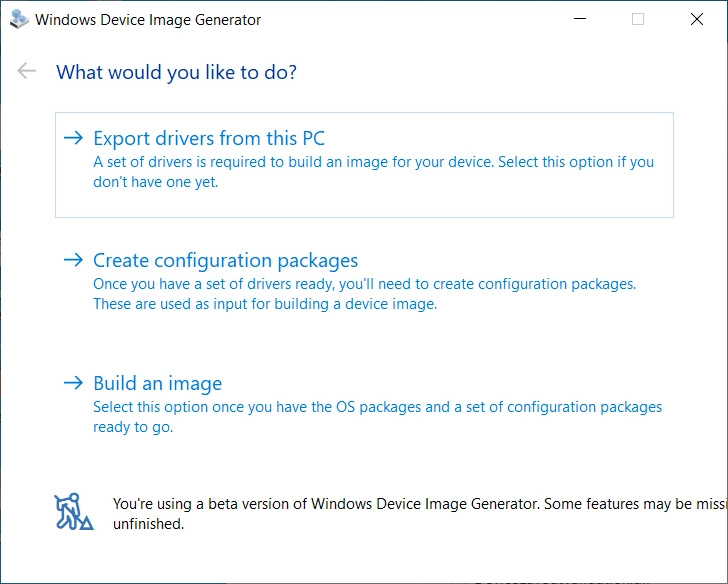
1. Go to `(disk root)\10X\Tools\` and open `DevImgGen.exe`
[](https://osg.wiki/uploads/images/gallery/2021-02/kFPXOYOEzbiGOkwW-image-1612453756539.png)
##### Extracting Drivers From Your Target Machine
This is the case when your target machine is the same you're building this image on.
*Example: you have Surface Pro 6 and you want to flash it with Windows 10X. You use Device Image Generator to extract current drivers from your Windows 10 machine.*
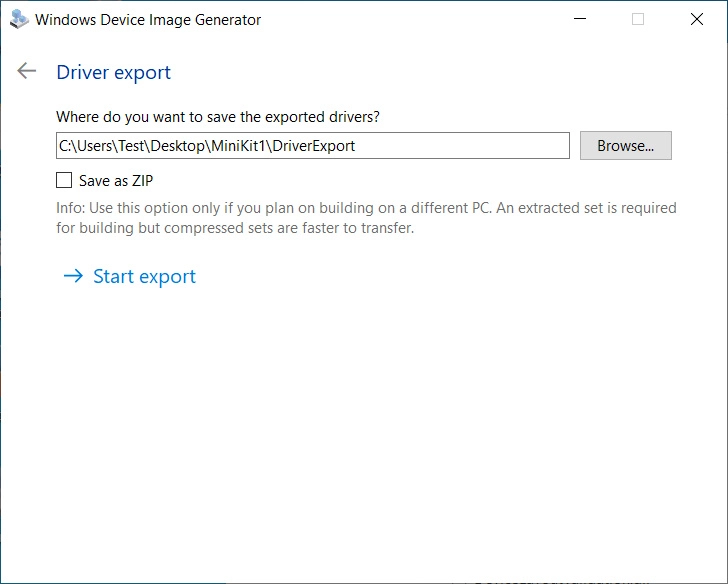
1. In the **Windows Device Image Generator** use the first menu option ("Export drivers from this PC") to extract drivers from the current machine
2. Specify location for storing your drivers package in the opened window to `10X\Devices`
[](https://osg.wiki/uploads/images/gallery/2021-02/mUT9KzvV4nlJK9Ms-image-1612453910260.png)
3. Click on "Start export"
##### Using Downloaded Drivers
This is the case when your target machine is different from the one you're building this image on.
*Example: you have Surface Pro 6 and Surface Go. You want to flash your Surface Go with Windows 10X. You use Device Image Generator to generate device driver package from the drivers you've downloaded for your Surface Go.*
1. Obtain DCHU Drivers for your hardware (especially GPU)
2. In the **Windows Device Image Generator** use the second menu option to generate device drivers package from your DCHU drivers folder
3. In the "Create configuration packages" specify location of your DCHU drivers (`(disk root)\10X\DCHUDrivers`), and specify location for storing your drivers package in the opened window to `10X\Devices`
4. Click "Process drivers"
#### \[Optional\] Edit A BSP for Your Hardware
This is only needed if some of the devices shall not be used.
1. Use `DeviceDriversPackageFM.xml` generated by the Device Image Generator, located at `(disk root)\10X\Devices` and comment out items that shall not be used:
```xml
```
**Note:** If your target machine is **Surface Go**, **remove** reference to `SurfaceACPIBattery.inf`.
### \[Optional\] Configure Your Image
**Note:** Not yet supported by the tool (`OEMInput.xml` is generated on the fly currently).
1. Edit `OEMInput.xml` if needed.
### Build Your Image
1. Prepare your environment:
Start > open **elevated** \***Deployment and Imaging Tools Environment**
2. In that window, type this (where `C:\` is the drive where your Windows 10 Insider Preview ADK is installed):
```
C:\> cd c:\Program Files (x86)\Windows Kits\10\Tools\bin\i386
```
3. Unless you use a non-prod machine, run this command to unregister the imaging toolchain overrides:
```
C:\> "%ProgramFiles(x86)%\Windows Kits\10\Assessment and Deployment Kit\Deployment Tools\%PROCESSOR_ARCHITECTURE%\DISM\wimmountadksetup%PROCESSOR_ARCHITECTURE%.exe" /q /uninstall
```
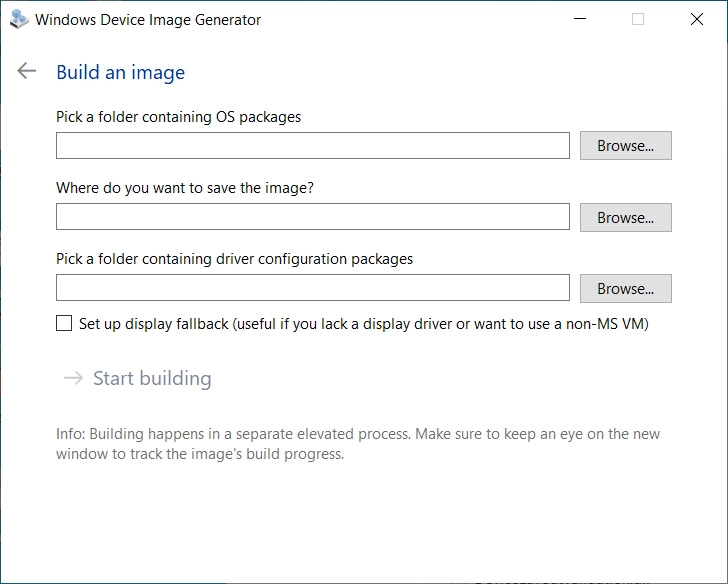
4. Use third option in the **Windows Device Image Generator** to begin generation of your Image (ffu). Use `(disk root)\10X\Sources` as the location of OS packages. Use `(disk root)\10X\FFUs` folder for storing your resulting FFU. Use `(disk root)\10X\Devices` as the location of your driver configuration packages.
5. Click on "Start building", and make sure to allow the separate elevated process to start. It will start the process of building the image.
[](https://osg.wiki/uploads/images/gallery/2021-02/jCEcrcwMqQnGfPd8-image-1612454099131.png)
## Prepare USB Drive for Flashing
**Note:** You can follow Microsoft docs ([Part I: Create Multipartition USB Drive](https://docs.microsoft.com/en-us/windows-hardware/manufacture/desktop/winpe--use-a-single-usb-key-for-winpe-and-a-wim-file---wim#create-two-partition-drive), [Part II: Install WinPE](https://docs.microsoft.com/en-us/windows-hardware/manufacture/desktop/winpe-create-usb-bootable-drive)), or you can follow these instructions (taken from the docs):
1. Get an empty Flash drive (with size at least 8GB)
2. In the same **Deployment and Imaging Tools Environment**'s elevated **Command Prompt window** open **diskpart** and press `Enter`
3. Follow these instructions to create two disks:
```
List disk
select disk X (where X is your USB drive)
clean
create partition primary size=2048
active
format fs=FAT32 quick label="WinPE"
assign letter=P
create partition primary
format fs=NTFS quick label="Images"
assign letter=I
exit
```
4. Create Working WinPE files by using this command (where `C:\WinPE_amd64` is the location of your choice):
```
copype amd64 C:\WinPE_amd64
```
5. Create bootable media with it (where `P:` is the letter of the FAT32 partition of your USB Flash drive):
```
MakeWinPEMedia /UFD C:\WinPE_amd64 P:
```
6. Copy your Image (`.ffu` file) to the `I:` drive (the second partition of your Flash drive formatted with NTFS)
7. Download and add `gdisk64.exe` file to the root of your WinPE partition (`P:` in this example)
### Apply Your Image
#### Apply Your Image on Machine Without Windows 10X Installed On It
1. Boot from WinPE drive
2. Open **diskpart**
3. Type this:
```
list disk
```
Take a note of the name of your device's main disk drive, e.g., `disk 0`4. Type **exit** to leave **diskpart**5. Use this command (and specify the correct path to the ffu that you created above, as well the id of your physical drive):
```
dism /apply-ffu /imagefile:C:\\YourDevice.ffu /applydrive:\\.\physicaldrive0
```
6. Once complete, remove your USB flash drive
7. Type **exit** in the **Command Prompt window**
#### Apply Your Image on Machine With Windows 10X Installed On It
1. Boot from WinPE drive
2. Type **notepad** to open notepad
3. Use `File-->Open` to find the name of your WinPE disk
4. Type this to identify the id of your physical drive:
```
spaceutil get-drive -poolname ospool
```
5. Type this (where `D:\` is the name of your WinPE disk and `0` in the end of `physicaldrive0` is the id of your physical drive):
```
cd D:\
gdisk64 -l \\.\physicaldrive0
```
6. Make sure that it contains OSPool and other partitions of Windows 10X
7. Type this to clean up the drive (where `0` in the end of `physicaldrive0` is the id of your physical drive):
```
gdisk64 \\.\physicaldrive0
o
w
```
and press `Enter`
8. Use this command (and specify the correct path to the ffu that you created above, as well the id of your physical drive):
```
dism /apply-ffu /imagefile:C:\YourDevice.ffu /applydrive:\\.\physicaldrive0
```
9. Once complete, remove your USB flash drive
10. Type **exit** in the **Command Prompt window**
### Load Windows 10X
At this time, your Windows 10X will boot. If everything is correct you should see the OOBE.
# Reverting 10X boot restrictions & returning to classic 10
#### Prerequisites
- A Windows 10 Setup USB of an identical or higher version than the 10X build you've used
- For example if you're on 10X build 20279, you'll want Windows 10 Insider Preview build 20279 or newer [(download here)](https://aka.ms/wip-iso)
- An x64 EFI shell [(click here to download)](https://github.com/tianocore/edk2/blob/UDK2018/ShellBinPkg/UefiShell/X64/Shell.efi?raw=true)
- gdisk64.exe (extract from ZIP) [(click here to download)](https://sourceforge.net/projects/gptfdisk/files/gptfdisk/1.0.6/gdisk-binaries/gdisk-windows-1.0.6.zip/download)
***Before you begin, make sure Secure Boot is turned off on the machine you wish to roll back to classic 10***
#### Tweak USB contents
- Plug in the setup USB drive
- Navigate to `efi\boot` inside your USB drive
- Rename the existing `bootx64.efi` file to `winx64.efi`
- Copy the EFI shell file you've downloaded to that directory and rename it to `bootx64.efi`
- Create a file on the root of your USB drive called `startup.nsh` and open it in Notepad
- Paste this text into Notepad and save the file: ```
dmpstore -d SecureBootPlatformID -guid 77FA9ABD-0359-4D32-BD60-28F4E78F784B
fs0:\efi\boot\winx64.efi
fs1:\efi\boot\winx64.efi
fs2:\efi\boot\winx64.efi
fs3:\efi\boot\winx64.efi
fs4:\efi\boot\winx64.efi
fs5:\efi\boot\winx64.efi
fs6:\efi\boot\winx64.efi
fs7:\efi\boot\winx64.efi
fs8:\efi\boot\winx64.efi
fs9:\efi\boot\winx64.efi
fsA:\efi\boot\winx64.efi
```
- Copy gdisk64.exe to the root of your USB drive
- The USB drive is now ready to use
#### Extra troubleshooting
Recent devices with Intel Pentium (Gold) chips that use Insyde BIOS are prone to entering a faulty Secure Boot state, resulting in the machine booting to a black screen with `Security Boot Fail` written in the middle, even though UEFI says Secure Boot is off. To fix this issue, do the following:
- Turn Secure Boot on
- Save changes and boot to UEFI settings again
- Turn Secure Boot off
- Secure Boot should now be fully disabled
#### Erasing the Windows 10X disk layout
- Boot your Windows Setup USB
- Press Shift-F10 to open the Command Prompt
- If nothing happens, you may need to also press the Fn key if your keyboard has one
- Find the drive letter of your USB drive (for example `D:`)
- An easy way to do this is to run Notepad and use the File>Open menu item, then go to This PC and look for it
- Navigate to it using this command (don't forget to use the appropriate letter for your own USB)
```
D:
```
- Run spaceutil to find the ID of your physical drive
```
spaceutil get-drive -poolname ospool
```
- In spaceutil's output look for the `####` column, the value can for example be `0`
- Double check that the ID is correct by running gdisk64
- Don't forget to change `X` in the command to the ID of your drive
```
gdisk64 -l \\.\physicaldriveX
```
- Make sure that the output of gdisk64 contains **OSPool** and other partitions of Windows 10X
- Use gdisk64 to clean up the drive using the following commands
- Don't forget to change `X` in the command to the ID of your drive
```
gdisk64 \\.\physicaldriveX
o
w
```
then press `Enter`
- Type `exit` to close the Command Prompt
***You can now continue installing Windows 10 like you usually would***
# Installing Windows 10X 20279 (emulator image) on real hardware
| Created: February 12, 2020 | Last Update: November 25, 2022 |
|---|
| Authors: | [NT Authority](https://twitter.com/NTAuthority), [Albacore](https://twitter.com/thebookisclosed), [Gustave Monce](https://twitter.com/gus33000), [Rafael Rivera](https://twitter.com/WithinRafael), [Daniel Kornev](https://twitter.com/danielko) |
| Status: | **Draft** |
| Supported Windows 10X Versions: | 20279 (partially) |
Here's some quick notes on installing Windows 10X on real hardware from emulator image or a prepared VHDX. For this example, we're assuming a system with *no* other critical disks installed, and a helpful host system being around to set up the initial image.
The guide has been updated for the 20279 image recently provided by [@thebookisclosed](https://twitter.com/thebookisclosed/status/1349516296073916417). **Ideally, you'd build your own .ffu image from the .cabs.**
**Here's a link to [Unofficial Guide to Build Windows 10X .ffu Image & Apply To Real Hardware](https://osg.wiki/books/windows-10x/page/installing-windows-10x-from-cabs-on-real-hardware).**
## Prerequisites
### Host
- Windows 10 Iron or Cobalt (20279 or 21xxx+).
- Utility USB flash drive of ~32GB+.
### Target
- CPU with Hyper-V support for VAIL. No VAIL in the newer build.
- Graphics card with DCHU drivers available.
- UEFI system firmware with the ability to **disable Secure Boot**.
- Boot drive larger than 128 GiB. An 128 GB SSD usually isn't.
- Preferred: 4Kn boot drive. We'll provide steps a bit later for converting the image.
## Host work
### Fetch and mount the emulator image
Make sure you have a *clean* .vhdx from the download link, which we shall refer to as `Flash.vhdx` from now on. Copy it someplace, and preferably keep another backup as well.
Mount it using PowerShell (as administrator):
```powershell
Mount-VHD "X:\WCOS\Flash.vhdx"
```
Check if the emulator image is mounted correctly:
```powershell
Get-StoragePool -FriendlyName OSPool
```
This should look like the following:
```
FriendlyName OperationalStatus HealthStatus IsPrimordial IsReadOnly Size AllocatedSize
------------ ----------------- ------------ ------------ ---------- ---- -------------
OSPool OK Healthy False False 127.9 GB 21.81 GB
```
### Gather UpdateApp and verify it works
Start `diskpart` so you can mount MainOS:
```
list volume
# select the volume called MainOS
select volume 42
# assuming M: is free
assign letter=m
exit
```
From the MainOS partition, go and hunt down the following files and drop them in a standalone folder (for example, `X:\WCOS\Tools`):
**\\Windows\\Servicing**
- UpdateApp.exe
- CbsApi.dll
- CbsMsg.dll
**\\Windows\\System32**
- CbsCore.dll
- DrvServicing.dll
- IUSpaces.dll
- IUSpaces\_vb.dll (copy and rename IUSpaces.dll)
- UpdateAPI.dll
- cimfs.dll
- cmiadapter.dll
- cmiaisupport.dll
- cmintegrator.dll
- dpx.dll
- drvstore.dll
- msdelta.dll
- mspatcha.dll
- mspatchc.dll
- turbostack.dll
- wcp.dll
- wdscore.dll
Run `cmd.exe` as administrator, go to the tool directory, and try getting the installed packages on the image:
```
cd /d X:\WCOS\Tools
updateapp getinstalledpackages
```
The result should look a lot like the following:
```
UpdateApp - Update Application for Windows Mobile
[00:00:00] Loaded servicing stack from X:\wcos\tools with session name IUPackageInfoSession_EFIESP
[00:00:00] External storage staging directory is: (null)
[00:00:00] Closing session IUPackageInfoSession_EFIESP
[00:00:00] Loaded servicing stack from X:\wcos\tools with session name IUPackageInfoSession_MainOS
[00:00:00] External storage staging directory is: (null)
[00:00:01] Closing session IUPackageInfoSession_MainOS
164 packages:
Microsoft-OneCore-HyperV-Guest-UpdateOS-Package~31bf3856ad364e35~amd64~en-US~10.0.19563.1000, UpdateOS
Microsoft-OneCore-HyperV-Guest-UpdateOS-Package~31bf3856ad364e35~amd64~~10.0.19563.1000, UpdateOS
Microsoft-OneCore-ServicingStack-UpdateOS-Package~31bf3856ad364e35~amd64~~10.0.19563.1000, updateos
Microsoft-OneCore-ServicingStack-UpdateOS-UX-Package~31bf3856ad364e35~amd64~~10.0.19563.1000, updateos
Microsoft-OneCoreUpdateOS-Product-Package~31bf3856ad364e35~amd64~en-US~10.0.19563.1000, updateos
Microsoft-OneCoreUpdateOS-Product-Package~31bf3856ad364e35~amd64~~10.0.19563.1000, updateos
Microsoft-Windows-OneCoreUpdateOS-ImageCustomization-Package~31bf3856ad364e35~amd64~~10.0.19563.1000, updateos
Microsoft-Composable-ModernPC-BootEnvironment-Core-CodeIntegrity-Sbcp-Package~31bf3856ad364e35~amd64~~10.0.19563.1000, EFIESP
Microsoft-OneCore-BcdBootoption-Package~31bf3856ad364e35~amd64~~10.0.19563.1000, EFIESP
[...]
getinstalledpackages completed successfully
command took 7 seconds
```
If it does, congratulations! You can move on to the next step.
### Inject graphics and network drivers
**In 20279, these steps may arbitrarily fail. You can execute them from Windows PE as well after copying the image, if you copy the drivers to your USB flash drive, and can tell which drive letter is your UFD.**
For this example we'll show the Intel HD Graphics driver, but you might need to add more INFs depending on your hardware. If you can't find the right INFs, why are you even doing this?
Place extracted Intel drivers in a directory, so that you have e.g. `X:\WCOS\DHCUDrivers\Graphics\iigd_dch.inf`. Open `iigd_dch.inf`, and note down the values for 'Provider' and 'DriverVer'. For me, those were:
```
Provider=%Intel%
DriverVer=08/23/2019,26.20.100.7158
```
The provider name is an indirected variable here, so we go and find what `%Intel%` meant as well. A bit below in the INF, we find the following:
```
Intel = "Intel Corporation"
```
Good! Now, invoke `updateapp` with the data we've just discovered to install the INF to the BSP partition in your WCOS image:
```
updateapp install "DriverPackage|X:\WCOS\DHCUDrivers\Graphics\iigd_dch.inf|Intel_Corporation-iigd_dch.inf~amd64~26.20.100.7158~bsp|0"
```
Note the recurrence of `Intel_Corporation` and `26.20.100.7518`. The installation process will complain with an error code of `c0880005` if you get the 'keyform' wrong.
The general rule for inf file names and provider names in the 'keyform' is the following:
- Any space in the inf name or the provider name must get replaced by an underscore '\_'
- Any dash in the inf name or the provider name must get replaced by an underscore '\_'
Finally, commit and finalize the image so future update application won't fail:
```
updateapp finalizecommit
```
After you've installed your favorite driver packages, we can prepare the utility flash drive.
### Make a utility flash drive
Gather the following assets into a directory we'll label `X:\WCOS\UtilityDrive\Boot`:
- From an ISO of Windows 10 21286 or above (you can get it from the Windows Insider Preview 'advanced' page):
- boot\\
- EFI\\
- sources\\boot.wim
- bootmgr.efi
- For later servicing, your WCOS\\Tools folder. **Use a hex editor to replace any mention of the Unicode string `X:\Windows` in UpdateAPI.dll and UpdateApp.exe with something like `X:\Wbndows`, or expect any servicing tasks to fail.**
- An x64 [EFI shell](https://github.com/tianocore/edk2/blob/UDK2018/ShellBinPkg/UefiShell/X64/Shell.efi?raw=true). **Rename EFI\\boot\\bootx64.efi to EFI\\boot\\winx64.efi, and name the shell as EFI\\boot\\bootx64.efi.** You'll **need** the shell in order to ***ever*** boot regular Windows again (including PE).
- A file called `startup.nsh` in the root:
```
dmpstore -d SecureBootPlatformID -guid 77FA9ABD-0359-4D32-BD60-28F4E78F784B
fs0:\efi\boot\winx64.efi
fs1:\efi\boot\winx64.efi
fs2:\efi\boot\winx64.efi
fs3:\efi\boot\winx64.efi
fs4:\efi\boot\winx64.efi
fs5:\efi\boot\winx64.efi
fs6:\efi\boot\winx64.efi
fs7:\efi\boot\winx64.efi
fs8:\efi\boot\winx64.efi
fs9:\efi\boot\winx64.efi
fsA:\efi\boot\winx64.efi
```
If you are having troubles getting back to Windows PE/Windows Desktop, you may also try the following extra commands in startup.nsh: (**Warning**: these will kill every variables you have saved on your system)
```
dmpstore -d -guid BA57E015-65B3-4C3C-B274-659192F699E3
dmpstore -d -guid 77FA9ABD-0359-4D32-BD60-28F4E78F784B
dmpstore -d -guid EAEC226F-C9A3-477A-A826-DDC716CDC0E3
```
- gdisk64.exe from [GPT fdisk](http://www.rodsbooks.com/gdisk/download.html).
- [ddrelease64.exe](http://www.chrysocome.net/download).
#### Partitioning
1. Connect your UFD.
2. Open `diskpart`.
3. `list disk`, `select disk` the **right disk, or you'll lose all data on it and will have to do a long partition scan to have any hopes of retrieving your data**, and `clean` + `convert gpt`.
4. `create partition primary size=5000`, `format fs=fat32 quick`, `assign letter=y` to make a bootable FAT32 partition.
5. `create partition primary`, `format fs=exfat quick`, `assign letter=z` to make an exFAT partition to house the VHDX.
#### Putting things in place
Place your boot drive directory on the drive you called `Y:`. `Dismount-VHD "X:\WCOS\Flash.vhdx` in your PowerShell to unmount the VHDX, and copy the VHDX to `Z:`. You should now have a tree structure similar to:
```
Y:\
Boot\
EFI\
Sources\
Tools\
startup.nsh
Z:\
Flash.vhdx
```
Eject and unplug the UFD.
## Target work
Use your throwaway laptop or other modern enough system with *larger-than-128GB* system drive. **Make sure Secure Boot is off.**
### Boot Windows PE
Boot it on the target. Really. Once you get into Setup, press `Shift-F10` to open a command prompt. Go back and open another, for good measure. Alt-Tab works for switching here.
### Copy the VHD (destructive!)
Find out where your USB flash drive is mounted. This will involve doing a lot of the following:
```
C:
dir
D:
dir
E:
dir
F:
dir
```
Here, we'll assume the *boot* volume is D: and the volume with Flash.vhdx is E:.
Open `diskpart`, and attach the VHD:
```
select vdisk file=E:\flash.vhdx
attach vdisk readonly
# wait a minute or so
list disk
# if MainOS etc. show up as online, good!
```
Note down the ID of a 2048 MB disk with a 2048 MB free space, and subtract 1 from it.
```
# note: there's no 16
Disk 17 Online 2048 MB 2048 MB
```
The ID to note down, therefore, is 16. Also, note down the ID of the target disk (3 in this case).
Wipe it. Yes. That's data loss for you. **Make sure you've got backups of anything important on there.**
```
select disk 3
clean
convert mbr
exit
```
(replacing `3`)
Copy the VHDX's content to your disk:
```
E:\Tools\ddrelease64 if=\\.\physicaldrive16 of=\\.\physicaldrive3 bs=8M --progress
```
(replacing `16` and `3`)
... and go have a hot beverage while waiting for this to hit 131072M.
### Rebuild the GPT (for 512-byte disks only)
You probably have a 512-byte disk, so you're going to have to rebuild the GPT. Yay!
Run commands along the following:
```
> E:\tools\gdisk64 -l \\.\physicaldrive16
[..]
Number Start (sector) End (sector) Size Code Name
1 512 8703 32.0 MiB EF00 BS_EFIESP
2 8704 33554426 128.0 GiB 4202 OSPool
```
Remember the numbers (start, end, code and name) for each partition. Multiply the numbers by 8 (since 4K/512 = 8) - so you get 4096, 69624, etc.
Now, we'll create a new GPT for the target disk:
```
E:\tools\gdisk64 \\.\physicaldrive3
# accept any warning
x
z
E:\tools\gdisk64 \\.\physicaldrive3
# accept the warning
n
1
4096
69631
EF00
n
2
69632
268435415
4202
c
1
BS_EFIESP
c
2
OSPool
p
# check if it makes sense - matches the above but with different sector numbers
w
```
Exit all open windows, and your system should reboot.
### Boot Windows PE, again
Boot into Windows PE again - not the internal disk you just overwrote. Verify in `diskpart` if you can `list volume` and it'll show MainOS etc. without you having attached the VHD.
### Remove WCOS Security
In Windows PE, open `diskpart` and do `select volume`. Find the volume named `ÈFIESP` we will assume here its volume id is 6, yours may be different. Then we run `select volume 6` and `assign`. Do `list volume` again to find the drive letter of EFIESP, in our case it's `E:`, yours may be different.
Delete the following file: `del E:\efi\Microsoft\Boot\SecureBootPolicy.p7b`
You may additionally replace `winsipolicy.p7b` with the one from a desktop sku (the file is located in the same folder).
### Boot W10X
OK, now you can boot your internal disk. If you haven't followed the Remove WCOS Security instructions, this will set a Secure Boot policy value, however, so you'll have to boot your utility flash drive again if you want to boot any other Windows media (or otherwise execute the `dmpstore` command).
If everything's right, you should be booting into Windows 10X, and your graphics adapter might even be working.